Google Privacy Settings Every Android User Should Know
Have you ever wondered what Google actually knows about you? Your Android phone tracks locations, records voice queries, logs every search, and builds an advertising profile — all with settings turned on by default. Here's how to claw back some of that privacy without throwing your phone out the window.
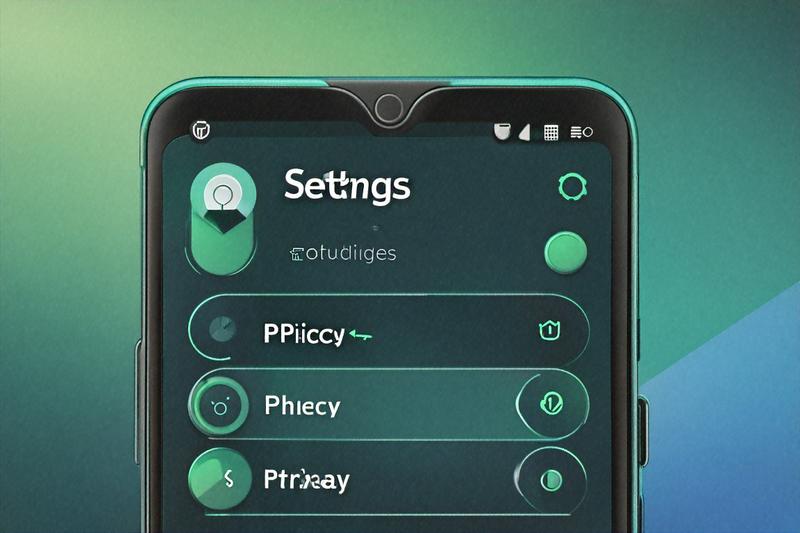
Have you ever pulled up Google Maps and noticed it already knows where you work, what time you usually leave home, and which route you'll probably take? That creepy-accurate prediction isn't magic. It's the result of months or years of location data your Android phone has been quietly collecting and feeding back to Google's servers. And location is just the start. Your searches, your YouTube habits, the apps you open, the things you say to Google Assistant — it's all logged, all stored, all connected to your Google account.
The good news: you can actually turn most of this off. The bad news: Google doesn't make it easy, and the settings are scattered across multiple menus like someone deliberately tried to make them hard to find. I spent a Saturday afternoon in early 2026 going through every privacy-related setting on a stock Android phone, and here's what I found — along with what it means for the roughly 600 million Android users in India.
Start with the Google Privacy Checkup
Before touching individual settings, there's a single page that gives you a bird's-eye view of your privacy situation. Open any browser and go to myaccount.google.com/privacycheckup. You can also reach it from your phone's Settings app: tap your Google profile picture, then "Google Account," then "Data & Privacy." The Privacy Checkup walks you through each data collection category, one by one, and lets you toggle things on or off.
It's not perfect — the language is carefully chosen to make data collection sound helpful and turning it off sound risky — but it's the fastest way to get oriented. Think of it as the front door. The individual settings we'll cover below are the rooms behind that door.
Location History: The Big One
Location History is, for many people, the most unsettling thing Google tracks. When it's on, your phone records where you are at all times — not just when you're using Maps, but constantly, in the background. Google stores this as a "Timeline" that you can view at timeline.google.com. It's shockingly detailed. You can see exactly what building you were in, when you arrived, when you left, how you got there.
To turn it off: Settings > Google > Google Account > Data & Privacy > Location History. Tap "Turn off." Google will ask if you're sure, warn you about features that won't work as well, and offer alternatives like auto-delete. If you want to split the difference, set it to auto-delete data older than 3 months. But if you want actual privacy, turn it off entirely and then delete the existing history — there's a "Delete all Location History" option in the same menu.
One thing that trips people up: turning off Location History doesn't stop individual apps from accessing your GPS. That's controlled separately through app permissions, which we'll get to. Location History is specifically about Google's background tracking of your movements across time. Both settings need attention.
Web and App Activity
This is arguably the broadest data collection switch on your phone. When Web & App Activity is turned on, Google records your searches on Google.com, your interactions inside Google apps (Maps, Play Store, Assistant), your Chrome browsing history if you're signed in, and even activity in third-party apps that use Google services. It all gets tied to your account and used to personalize ads, search results, and recommendations.
Go to Data & Privacy > Web & App Activity. You'll see a toggle and, underneath it, a checkbox that says "Include Chrome history and activity from sites, apps, and devices that use Google services." Uncheck that box first if you want to keep basic Web & App Activity but limit what's included. Or turn the whole thing off, which is what I'd recommend for anyone who values their privacy over slightly more relevant search suggestions.
There's also a sub-option about "Audio recordings." When you talk to Google Assistant, those voice recordings can be stored and reviewed (including by human contractors). Turn this off unless you're comfortable with that arrangement. If you've been using Assistant for a while, go to myactivity.google.com and filter by "Voice and Audio" — you might be surprised by how many clips exist.
Ad Personalization
Google builds an advertising profile based on your age (estimated), gender (estimated), languages, interests, and browsing behavior. You can see what Google thinks it knows about you at adssettings.google.com. Last time I checked mine, it had correctly guessed my age range, decided I was interested in "consumer electronics" and "South Asian cuisine," and somehow concluded I cared about "luxury vehicles" — I drive a ten-year-old hatchback.
To opt out: Settings > Google > Ads > Ad Personalization and turn it off. On some Android versions, this is under Settings > Google > Manage your Google Account > Data & Privacy > Ad Settings. You'll still see ads everywhere — this doesn't block them — but they won't be targeted based on your personal profile. Honestly, in my experience, the non-personalized ads are about as relevant as the personalized ones, which tells you something about how well personalization actually works.
A related step: reset your Advertising ID. This is a unique identifier that apps and ad networks use to track you across different applications. On most Android phones, go to Settings > Privacy > Ads and tap "Reset advertising ID." Android 12 and later also give you the option to delete it entirely.
YouTube History
If you watch YouTube — and in India, where YouTube has over 460 million monthly users, odds are you do — then Google is logging every video you watch, every search you make on the platform, and every comment you leave. This feeds into YouTube's recommendation algorithm, sure, but it also feeds into your overall Google profile.
Head to Data & Privacy > YouTube History and you'll see two toggles: Watch History and Search History. You can pause both. If you don't want to lose recommendations entirely, set auto-delete to 3 months. I'd suggest pausing Search History at minimum — the videos you search for are far more revealing than the ones the algorithm surfaces.
The App Permissions Mess
This one deserves its own section because it's where most of the real-world privacy leakage happens. Every Android app can request permissions — camera, microphone, contacts, location, phone, files, calendar, and more. The problem isn't that apps ask for permissions. It's that many apps ask for far more than they need, and most users tap "Allow" without thinking.
Go to Settings > Privacy > Permission Manager (on some phones, it's Settings > Apps > Permission Manager). This shows you every permission category and which apps have access. Here's what I'd recommend reviewing:
Location: This is the most abused permission. Check how many apps have "Allow all the time" access. For most apps — shopping, food delivery, social media — "Allow only while using the app" is sufficient. Better yet, set it to "Ask every time" for apps you use infrequently. A flashlight app has no business knowing your GPS coordinates, and yet I've seen phones where dozens of random apps had full location access.
Camera and Microphone: Same logic. Unless an app genuinely needs to record video or audio (like WhatsApp for video calls, or Google Meet), set these to "Allow only while using the app" or "Ask every time." Android 12 and later show indicator dots in the status bar when the camera or microphone is active, which is a useful visual cue.
Contacts: Many apps request contact access to "find friends" or "suggest connections." What they actually do is upload your entire contact list to their servers. Games, utility apps, and social media apps that aren't primarily about messaging don't need your contacts. Deny it.
Phone: This permission lets apps see your phone number, read your call log, and make calls. Restrict it to your phone dialer, messaging app, and maybe your UPI app (which might need it for verification). Everything else gets denied.
Files and Media: With Android 13 and later, you can grant granular access to photos, videos, and music separately instead of giving blanket storage access. Use it. A music player doesn't need to see your photos, and a photo editor doesn't need to see your documents.
Permission Auto-Reset
Android 11 introduced a feature that most people don't know about: if you haven't used an app for a few months, the system automatically revokes its permissions. This is on by default for newer apps, but you should verify it. Go to Settings > Apps, tap any app, then Permissions, and look for "Pause app activity if unused" or "Remove permissions if app is unused." Make sure it's enabled, especially for apps you installed once, used twice, and forgot about. Those zombie apps sitting on your phone with camera and location access are a real risk.
Google Dashboard and Takeout
Two tools that don't get enough attention:
Google Dashboard (myaccount.google.com/dashboard) shows you a summary of your data across every Google service — Gmail, Drive, Photos, Calendar, Contacts, Chrome, Fit, Play, YouTube, and more. It'll tell you how many emails you have, how many photos are stored, how many contacts exist, and so on. It's a good reality check on how deeply Google is embedded in your digital life.
Google Takeout (takeout.google.com) lets you download all your Google data in portable formats. This serves two purposes. First, it shows you exactly what Google has — which can be enlightening and mildly horrifying. Second, it gives you a backup if you ever want to leave the Google ecosystem. You can export your emails, photos, contacts, Drive files, YouTube history, location history, and more. The export might take hours or days for large accounts, but it's worth doing at least once.
Play Protect and Unknown Sources
Google Play Protect is the built-in security scanner on Android phones. It checks apps when you install them and periodically scans your device for harmful software. Make sure it's turned on: Play Store > tap your profile icon > Play Protect > Settings and verify that "Scan apps with Play Protect" is enabled.
The flip side is "Unknown sources" or "Install unknown apps" — this controls whether you can install APK files from outside the Play Store. On modern Android, it's managed per-app: Settings > Apps > Special app access > Install unknown apps. Every app listed should say "Not allowed" unless you have a specific reason to sideload (like installing F-Droid, the open-source app store). In India, where fake banking apps and malicious APKs circulate through WhatsApp groups like chain messages, keeping this locked down is genuinely important.
A Few More Things Worth Checking
Android has accumulated a lot of privacy features over the years, and some of the useful ones get buried. Private DNS (under Settings > Network & Internet > Private DNS) lets you encrypt your DNS queries so your ISP can't see which websites you're visiting. Set it to dns.adguard.com for ad-blocking, or one.one.one.one for Cloudflare's privacy-focused DNS. The Privacy Dashboard (Android 12+, under Settings > Privacy) shows a 24-hour timeline of which apps accessed your location, camera, and microphone. It's eye-opening the first time you look at it.
There's also the matter of lock screen notifications. By default, your phone might show full message contents on the lock screen, which anyone who glances at your phone can read. Go to Settings > Notifications > Notifications on lock screen and change it to "Show sensitive content only when unlocked" or "Don't show notifications at all."
And one thing I keep meaning to mention when people ask about this stuff: none of these settings are permanent. Google rolls out updates, redesigns menus, adds new data collection features, and occasionally resets preferences after major OS upgrades. The settings you configure today might need rechecking in six months. A Privacy Checkup twice a year is probably the minimum to stay on top of it, and honestly, that's more effort than most people will put in — which is exactly what Google's counting on
Written by
Amit PatelTech Security Writer
Amit Patel is a technology journalist and security researcher who covers mobile security, app privacy, and emerging threats targeting Indian users. He previously worked with leading Indian tech publications before joining PrivacyTechIndia.
Related Posts
How to Audit App Permissions on Your Phone
People say they care about phone privacy, then hand every app blanket access to their camera, microphone, contacts, and location. Here's how to actually check what your apps can see and shut down the ones that are overreaching.
IoT Devices in Indian Homes: Privacy Risks You Are Ignoring
Your smart speaker is always listening. Your Wi-Fi camera is phoning home to servers you've never heard of. Indian households are filling up with connected gadgets and barely anyone's asking what data leaves the house.
GPS Tracking and Location Privacy on Your Smartphone
So I turned off location services on my phone for a week to see what would happen. The answer: a lot more than I expected. Here's a casual deep dive into how your phone tracks you and what you can realistically do about it.