How to Secure Your Wi-Fi Network at Home
Your neighbor might be on your Wi-Fi right now. Default passwords, outdated encryption, and forgotten settings leave most Indian home networks wide open. Here's how to actually lock yours down.
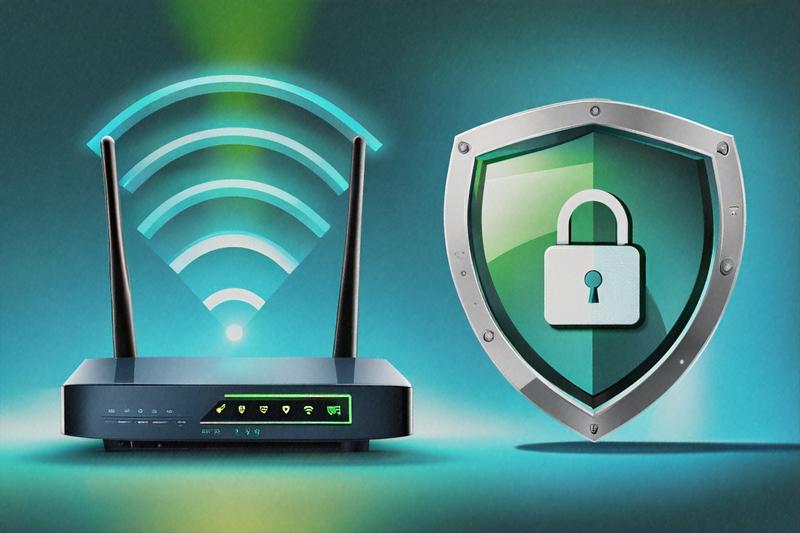
Picture this. It's 10 PM on a weeknight, you're streaming something on Hotstar, and the buffering won't stop. Your broadband is a 100 Mbps Jio Fiber connection. Should be plenty. You open the router admin page, check connected devices, and there are fourteen of them. You own six. Someone in your apartment building — maybe several someones — has been riding your Wi-Fi for who knows how long.
This happens more often than people admit. A friend of mine in Bangalore discovered his neighbor had been using his Airtel Xstream connection for over a year. The default password was still set. The neighbor had simply looked up the ISP's default credentials online and typed them in. No hacking tools, no technical skill. Just a Google search and a bit of nerve.
Your home Wi-Fi is the front door to everything you do online — banking, emails, private conversations, work documents if you're remote. Leaving it unsecured is like leaving your house key under the doormat and hoping nobody checks there. Let's fix that, step by step, without turning this into a networking textbook.
The First Thing: Change That Default Password (Both of Them)
Your router has two passwords that matter. The first is the admin password — the one you type into 192.168.1.1 or 192.168.0.1 to access router settings. The second is the Wi-Fi password — what your phone asks for when connecting. Most people forget about the first one entirely.
Default admin credentials are publicly available. For TP-Link routers it's usually admin/admin. D-Link uses admin with a blank password. Netgear sometimes uses admin/password. ISP-provided routers from Jio, Airtel, and BSNL often use the serial number or a predictable pattern. Anyone who can connect to your Wi-Fi can type your router's IP address into a browser and, if the admin password hasn't been changed, take full control of your network. They could redirect your DNS (more on that later), monitor your traffic, or lock you out of your own router.
So step one, before anything else: log into your router's admin panel and change the admin password to something strong. Twelve characters minimum. Mix of upper and lowercase letters, numbers, a special character or two. Don't use your phone number, your flat number, or your name followed by 123. Write it down somewhere physical if you need to — a sticky note inside your desk drawer beats a weak password you can remember.
Then change the Wi-Fi password. Same rules apply. And while you're at it, change the network name (SSID) too. Using the default SSID like "JioFiber-4G_XXXX" tells an attacker exactly what router model you're running, which tells them exactly what exploits might work against it.
WPA3 vs WPA2: What's the Difference and Does It Matter?
Encryption is what stops someone with a laptop and the right software from reading your Wi-Fi traffic out of thin air. Your router probably supports several encryption standards, and picking the right one matters quite a bit.
WEP is the oldest. Ancient, really. It can be cracked in literal minutes using free tools that run on a basic laptop. If your router is still set to WEP, that's basically the same as having no encryption at all. Some very old routers from 2010 or earlier might only support WEP. If that's your situation, it might be time for new hardware.
WPA2-PSK (AES) has been the standard for over a decade. It's solid. When properly configured with a strong password, WPA2 is difficult to crack through brute force — we're talking years of computation for a sufficiently complex password. Most routers sold in India over the past five years default to WPA2, so there's a decent chance you're already using it. But check. Some ISP-configured routers get set to WPA/WPA2 mixed mode for compatibility, and mixed mode can sometimes fall back to weaker encryption.
WPA3 is the newest standard, and it fixes several weaknesses in WPA2. The biggest improvement is called Simultaneous Authentication of Equals (SAE), which protects against offline dictionary attacks. With WPA2, an attacker who captures your Wi-Fi handshake can take it home and run billions of password guesses against it offline. WPA3 prevents this entirely — each authentication attempt has to happen in real-time with your router, making brute force impractical even with a mediocre password.
Here's the catch. Not all your devices might support WPA3. Older phones, laptops from before 2019, and most smart home gadgets still only speak WPA2. If you enable WPA3-only mode, those devices won't connect. Most modern routers offer a WPA3/WPA2 transition mode that lets newer devices use WPA3 while older ones fall back to WPA2. That's probably your best bet unless you're sure every single device in your house handles WPA3.
Should You Hide Your SSID?
This is one of those tips that sounds smart but doesn't do much in practice. Hiding your SSID — making your network name invisible in the Wi-Fi scan list — means casual users won't see it. But anyone with even basic network scanning tools (Kismet, WiFi Analyzer, or even the free Fing app) can detect hidden networks in seconds. The SSID is transmitted in probe requests from your own devices every time they try to connect, so it's not really hidden at all.
Worse, hiding your SSID can actually cause problems. Your devices will constantly broadcast probe requests looking for the hidden network wherever you go, which can leak your home network name to anyone listening. Some devices also have connection stability issues with hidden networks, especially IoT gadgets and older smart TVs.
I'd skip SSID hiding. It creates inconvenience without providing real security. Spend that energy on a strong password and proper encryption instead — those actually work.
MAC Filtering: Useful or Security Theater?
MAC filtering lets you create a whitelist of approved device addresses. Only devices whose MAC address appears on your list can connect. Sounds great, right?
The problem is that MAC addresses are trivially spoofable. Any attacker who's gotten far enough to know about your network can sniff the MAC addresses of your connected devices and clone one in about thirty seconds. So MAC filtering won't stop a determined attacker. What it will stop is casual freeloaders who don't know what a MAC address is — your neighbor's teenager, the delivery person who saw your password written on the fridge, that kind of thing.
If you want to use it as an extra layer, go ahead. Just don't rely on it as your primary defense. Think of it as a screen door — keeps the flies out, won't stop a burglar.
Guest Networks: The Smartest Feature You're Not Using
When relatives visit and ask for the Wi-Fi password, what do you do? Most people just share their main password. That relative then shares it with their kid, who shares it with a friend, and six months later four people you've never met have permanent access to your home network.
Almost every router sold in the last five years supports guest networks. A guest network is a separate Wi-Fi access point that shares your internet connection but is isolated from your main network. Devices on the guest network can't see your computers, NAS drives, printers, or smart home devices. They get internet access and nothing else.
Set up a guest network with a simpler (but still reasonable) password that you can share freely and change whenever you want. Some routers even let you set time limits or bandwidth caps on the guest network. The TP-Link Deco and Netgear Nighthawk series both handle this well, and even the basic Jio Fiber router supports it through the JioFiber app.
Here's a pro tip that might surprise you: put your IoT devices on the guest network too. Smart bulbs, security cameras, robot vacuums — most of these gadgets have terrible security track records and get firmware updates rarely, if ever. Isolating them on a separate network means that even if someone compromises your smart plug, they can't jump from there to your laptop or phone. In late 2025, a widely reported vulnerability in a popular smart camera brand sold heavily in India allowed attackers to pivot from the camera to other devices on the same network. Guest network isolation would have blocked that lateral movement entirely.
Firmware Updates: The Boring Step Nobody Does
Your router runs software, just like your phone. That software has bugs. Those bugs sometimes create security holes that let attackers bypass your password, crash your router, or intercept your traffic. Manufacturers release firmware updates to fix these bugs, and most people never install them.
The process varies by brand. For TP-Link routers, you can usually check for updates directly in the admin panel under System Tools > Firmware Upgrade. Netgear has the Nighthawk app that sends notifications. For ISP-provided routers, Jio and Airtel sometimes push updates automatically, but it's inconsistent — I'd check manually every couple of months.
If your router is more than four or five years old and the manufacturer has stopped releasing updates, seriously consider replacing it. An unpatched router is a sitting target. A decent dual-band router like the TP-Link Archer C6 or the Tenda AC10 costs under 2,000 rupees and will give you years of supported updates. That's cheaper than the damage from a single network intrusion.
DNS Settings: A Small Change with Big Impact
DNS — Domain Name System — is what translates website names like google.com into IP addresses your computer can connect to. By default, your router uses your ISP's DNS servers. The issue? ISP DNS servers in India are often slow, sometimes unreliable, and in some cases log your browsing activity.
Switching to a privacy-respecting DNS provider is one of the simplest improvements you can make. Two good options:
- Cloudflare (1.1.1.1) — Widely considered the fastest public DNS. Cloudflare pledges to not sell your data and purges all logs within 24 hours. They publish annual third-party audits to verify this claim. Set your primary DNS to 1.1.1.1 and secondary to 1.0.0.1.
- Google (8.8.8.8) — Fast and reliable. Google does log some data temporarily for diagnostic purposes, which makes it slightly less private than Cloudflare, but it's still a significant improvement over most ISP DNS servers. Primary: 8.8.8.8, secondary: 8.8.4.4.
You can change DNS at the router level (so every device on your network benefits) or on individual devices. At the router level, look for DNS settings under WAN or Internet settings in your admin panel. On Android, you can set Private DNS to "dns.cloudflare.com" under Settings > Network. On iPhones, you'll need to configure it per Wi-Fi network or use the 1.1.1.1 app from Cloudflare.
For families with kids, consider Cloudflare's 1.1.1.3 — it's the same service but with malware and adult content filtering built in. Set it at the router level and it covers every device in the house without installing any additional software.
Disable WPS. Seriously, Just Do It.
Wi-Fi Protected Setup was designed to make connecting devices easier. Press a button on your router, press a button on your device, done. The convenience is real. The security is a disaster.
The WPS PIN — an eight-digit number — can be brute-forced in a matter of hours. Tools like Reaver and Bully automate this completely. Once an attacker recovers the WPS PIN, they get your Wi-Fi password in plain text. Doesn't matter how complex your password is. Doesn't matter if you're using WPA3. The WPS vulnerability bypasses all of that.
Some router manufacturers have added rate limiting to slow down brute force attempts, but the implementation is inconsistent and some models can be tricked into resetting the lockout timer. The safest approach is simple: turn WPS off entirely. You'll find the option in your router's wireless settings, usually under a section called WPS or Wi-Fi Protected Setup. Disable it and forget it exists.
Router Placement: More Than Just Signal Strength
Where you put your router affects security, not just coverage. If you live in an apartment complex — and in Indian cities, most people do — your Wi-Fi signal bleeds through walls into neighboring flats, the corridor, and sometimes down to the floor below. The stronger the signal in areas outside your home, the easier it is for someone nearby to attempt an attack.
Place your router near the center of your living space rather than against an exterior wall or next to a window. This maximizes coverage inside your home while minimizing leakage outside. Avoid placing it near the main door — that's the closest point to the corridor and neighboring units. If your router has adjustable transmission power (many do, in the advanced wireless settings), consider turning it down from 100% to 70-80%. You'll still get full coverage inside a typical 2-3 BHK flat while significantly reducing your footprint outside it.
Also think about vertical placement. Routers work best when they're elevated — on a shelf, mounted on a wall, or on top of a bookcase. Putting your router on the floor under a desk is terrible for coverage and, if you're on the ground floor, you're basically beaming signal downward into the parking garage or the shop below. Elevation helps the signal spread horizontally where you actually need it, and placing it at roughly the midpoint of your home's vertical space (first or second shelf height in a two-story house) gets the most even distribution.
What About ISP-Provided Routers? Should You Replace Them?
Here's a question I get a lot. Short answer: probably yes, eventually. ISP-provided routers — the ones Jio Fiber, Airtel, ACT Fibernet, and others give you when you sign up — are designed to be cheap and functional. They work. But they typically have slower processors, less RAM, fewer features, and get firmware updates less frequently than standalone routers from dedicated networking companies.
The biggest concern is firmware updates. When a security vulnerability is discovered in your router's chipset or software, how quickly does your ISP push a patch? In my experience, the answer ranges from "a few weeks" to "never." ISPs manage millions of routers and their update cadence reflects business priorities, not security urgency. A standalone router from TP-Link, Asus, or Netgear is more likely to receive timely patches because the manufacturer's reputation depends on it.
If you do replace the ISP router, you have two options. You can use your own router in "bridge mode" behind the ISP device (the ISP box handles the internet connection, your router handles Wi-Fi and local networking) or, with some ISPs, you can replace the ISP device entirely. Jio Fiber subscribers, for instance, can connect most third-party routers to the ONT (optical network terminal) directly. Airtel Xstream connections sometimes require the ISP router for authentication, making bridge mode the easier choice. Either way, even a 2,500-rupee router from a reputable brand will likely give you better security controls, more reliable firmware updates, and stronger Wi-Fi performance than whatever the ISP handed you.
Checking Connected Devices: Make It a Monthly Habit
Log into your router's admin panel once a month and look at the list of connected devices. Every router shows this somewhere — usually under "Connected Devices," "DHCP Client List," or "Wireless Clients." You should recognize every device on that list.
If something looks unfamiliar, don't panic right away. Device names can be cryptic — your smart TV might show up as "ESP_A4F2B1" and your kid's tablet might just say "android-abc123." Cross-reference MAC addresses if you need to. The Fing app (free on Android and iOS) makes this much easier — it scans your network and identifies devices by manufacturer, so "ESP_A4F2B1" becomes "Samsung Smart TV" and suddenly makes sense.
But if you spot a device you genuinely can't account for, change your Wi-Fi password immediately. That's the nuclear option, and it's the right one. Yes, you'll need to reconnect all your devices. That's ten minutes of inconvenience versus continued unauthorized access to your network. Worth it every time.
One more thing before I wrap this up. If you take away nothing else from this post, do this one thing tonight: change your router's admin password. Not tomorrow, not next weekend. Tonight. It takes sixty seconds, it costs nothing, and it closes the single biggest vulnerability in most Indian home networks. Everything else — encryption settings, guest networks, DNS changes — those matter too, and you should get to them. But the admin password is where you start. Go do it.
Written by
Vikram SinghCybersecurity Consultant
Vikram Singh is a certified ethical hacker and cybersecurity consultant who has helped secure systems for major Indian banks and government agencies. He writes about practical security measures for everyday Indian internet users.
Related Posts
Encrypted DNS: How to Protect Your Browsing from ISP Snooping
Picture this: you open your laptop, visit a medical website, then a job portal, then your bank. Your ISP just logged all three. Encrypted DNS stops that — and setting it up takes about five minutes.
How to Create Strong Passwords You Can Actually Remember
Eighty-three percent of Indians reuse the same password across multiple accounts. Here are real-world methods for building strong, memorable passwords without losing your mind.
How to Set Up a Privacy-Focused Android Phone
Ever wonder how much your Android phone tells Google about you before you've even opened an app? Probably more than you'd be comfortable with. Here's how to set up your phone so it stops oversharing.