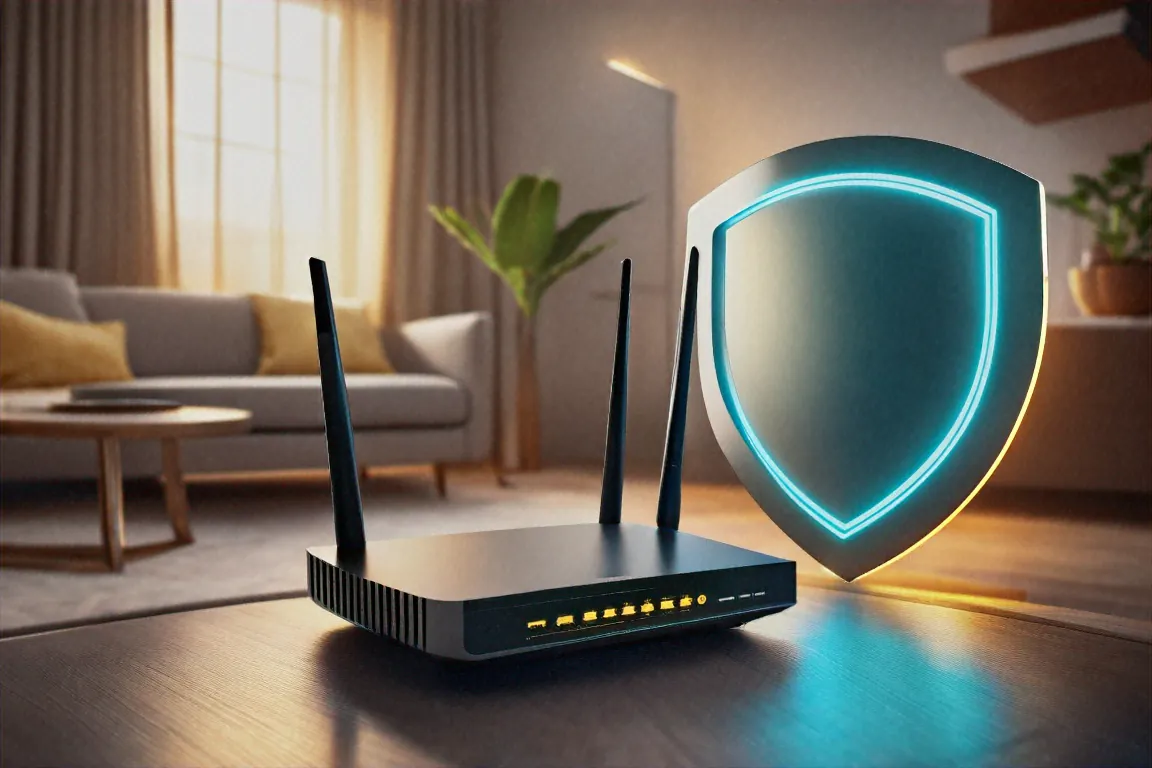
Change Both Router Passwords
Your router has two passwords. Most people only know about one.
The first is the Wi-Fi password. That is the one you type into your phone or laptop to connect to the network. The second is the admin password. That is the one that opens the router's settings panel, where you control everything about how the network works. Both of these are probably still set to whatever the Jio or Airtel technician typed in during installation. Or worse, they are still on the factory default.
Anyone who knows your router model can find the default admin login in about ten seconds by searching online. Once they are inside the admin panel, they own your network. They can redirect your traffic, change your DNS settings, lock you out of your own router, or just sit there quietly watching what you do online. This is not a theoretical risk. Default credentials on home routers are one of the most common entry points for network attacks in India and everywhere else.
To get into the admin panel yourself, open a browser on any device connected to your Wi-Fi and type the router's IP address in the address bar. For most routers in India, it is one of these:
- 192.168.0.1 (common for TP-Link, D-Link)
- 192.168.1.1 (Airtel Xstream, BSNL, Netgear, many others)
- 192.168.29.1 (JioFiber routers)
The default login for Airtel Xstream routers is usually admin/admin or admin followed by the serial number printed on the router. JioFiber defaults vary but are often admin/Jiocentrum. BSNL routers, which are typically rebranded Netlink or Syrotech devices, almost always ship with admin/admin. TP-Link and Netgear routers have their defaults printed on a sticker on the bottom of the device.
Just log in and change both passwords. The Wi-Fi password should be at least twelve characters, a mix of letters, numbers, and symbols. Something like River$Mango42!Train. The admin password should be completely different from your Wi-Fi password. Store the admin password in a password manager or write it on a piece of paper and put that paper in a drawer. Do not tape it to the router. I have walked into people's homes and seen the admin password written on a Post-it note stuck to the side of the router, right there in the living room where every visitor can read it.
While you are in the settings, change the network name too. The default SSID, something like "JioFiber-4G-7A2B" or "Airtel_XTREAM_12345," tells anyone scanning for networks exactly what brand and model of router you are running. That makes it easier to target you with known vulnerabilities for that specific device. Change it to something generic. "HomeWiFi" or "Network5G" works fine. Do not put your name, flat number, or phone number in the SSID. I have seen networks named things like "Sharma_302" and that is basically handing out your apartment number to anyone with a phone.
This single step, changing both passwords and the SSID, takes about five minutes and eliminates the most obvious security hole in most Indian home networks. Just do it now. The rest of the changes below can wait, but the passwords should not.
Switch to WPA3 (or at Least WPA2)
Encryption is what stops someone sitting in the flat next door from reading your internet traffic. When your data travels between your device and the router, encryption scrambles it so that even if someone captures the signal, they cannot make sense of it.
There are several Wi-Fi encryption standards, and the older ones have been broken. WEP was cracked years ago. A teenager with a laptop and a freely available tool can break WEP encryption in under five minutes. WPA improved on WEP but also has known weaknesses. If your router is using either of these, switch immediately.
WPA2 with AES encryption is what most routers in India currently use. It is solid. It has been the standard for years and holds up well against most attacks. If your router supports WPA3, switch to that instead. WPA3 is the newest standard. It handles brute-force password guessing much better than WPA2 because it uses a different handshake protocol that does not expose the password hash. Many newer JioFiber and Airtel Xstream routers support WPA3, or at least a WPA2/WPA3 mixed mode that works with older devices that cannot handle WPA3 yet.
To check your encryption: log into the admin panel, find the section labelled Wireless Security, Wi-Fi Security, or something similar. Look for a dropdown called "Security Mode" or "Encryption Type." Pick WPA3-Personal if it is available. If not, pick WPA2-Personal with AES. Make sure it does not say TKIP anywhere. TKIP is an older encryption method with known weaknesses. Some routers offer a "WPA2-TKIP/AES" mixed option. Avoid it. Just use AES.
If your router does not support at least WPA2 with AES, replace it. A decent TP-Link or Netgear router costs 1,500 to 3,000 rupees. That is worth it. Running an outdated encryption standard on your home network is like having a lock on your front door that anyone can pick with a paperclip.
One thing that confuses people: changing the encryption standard does not change your Wi-Fi password. It changes how that password is used to protect the connection. You can keep the same password and just switch from WPA2 to WPA3, or you can change both at the same time. Either way, all your devices will need to reconnect after the change. On most phones and laptops, you just tap the network name, enter the password again, and you are back online. It takes a minute per device.
Update the Firmware
Your router runs software, just like your phone does. That software is called firmware. It gets security patches from the manufacturer. The difference between your phone and your router is that your phone nags you constantly about updates. Your router just sits in the corner silently running whatever version it shipped with.
There have been serious security flaws discovered in routers from TP-Link, D-Link, Netgear, and the white-label devices that Indian ISPs hand out. Some of these vulnerabilities let attackers take control of the router from outside your network, without needing your password, without being connected to your Wi-Fi. Others allow DNS hijacking, where the attacker changes your router's settings so that when you type "hdfc.com" in your browser, you get sent to a fake version of the site that steals your login credentials. These are not hypothetical attacks. They have happened.
Just check your firmware version. Log into the admin panel. Look for a section called System, Administration, Maintenance, or Firmware. The version number will be displayed there. Then go to the manufacturer's website and see if a newer version exists. For TP-Link routers, it is tp-link.com/in/support. For Netgear, netgear.com/support. For D-Link, dlink.com/in. Download the firmware file and upload it through the admin panel.
JioFiber and Airtel Xstream routers usually get firmware updates pushed automatically by the ISP. But "usually" is doing a lot of work in that sentence. Log in and verify. If you are on BSNL with one of their Netlink or Syrotech routers, you will almost certainly need to update manually. Find the exact model number on the sticker on the router, search for it on the manufacturer's site, download the latest firmware, and upload it through the admin panel's firmware update page.
If your router is more than five years old and the manufacturer has stopped releasing firmware updates, that router is a liability. Replace it. An unpatched router with known vulnerabilities is an open invitation.
Set a reminder on your phone to check for router firmware updates once every three months. It takes five minutes. Just do it.
One more thing about firmware. After updating, your router might reset some settings to defaults. Check your Wi-Fi password, admin password, encryption type, and any other changes you made after the update finishes. Some firmware updates preserve your settings, others do not. Just verify everything after the update completes. It takes two minutes and saves you from accidentally undoing your own security work.
Turn Off WPS
WPS stands for Wi-Fi Protected Setup. It was designed to make connecting new devices to your Wi-Fi easier. Instead of typing a long password, you press a button on the router or enter an eight-digit PIN, and the device connects automatically.
The vulnerability is in the PIN method. That eight-digit WPS PIN can be cracked by an attacker in a few hours using freely available tools. The PIN is not checked as a single eight-digit number. It is verified in two halves, which means an attacker only needs to guess a four-digit number twice, not an eight-digit number once. That brings the total number of possible combinations down to about 11,000, which a computer can work through very quickly.
Once someone cracks your WPS PIN, they get your Wi-Fi password. Not a temporary connection. Your actual password, in plain text.
Most routers in India ship with WPS enabled by default. TP-Link routers, Netgear routers, D-Link routers, the JioFiber router, the Airtel Xstream box. All of them. The fix is simple. Log into the admin panel, find the WPS setting (it is usually under Wireless settings or Advanced settings), and turn it off. That is it. One toggle. Takes ten seconds.
You do not need WPS. Typing a Wi-Fi password takes thirty seconds. Having someone crack that password through a known vulnerability takes much less time and causes much more damage. Just turn it off.
Some older routers do not let you disable WPS through the admin panel. If yours is one of those, that is another reason to replace it.
I want to be clear about how serious the WPS flaw is. It is not a theoretical vulnerability that requires expensive equipment or deep technical knowledge to exploit. The tools to crack a WPS PIN are free, open-source, and documented in tutorials all over the internet. A person sitting in a car outside your building with a laptop and a Wi-Fi adapter can crack a WPS-enabled router in a few hours without anyone noticing. Once they have your password, they are on your network, and they can stay there indefinitely. Just turn off WPS.
Create a Guest Network
Every time a friend, relative, or delivery person asks for your Wi-Fi password, you hand them the keys to your main network. Once that password is on their phone, it stays there. They might share it with someone else. That person shares it with another person. Within a few months, half your building could be connected to your network using a password that was casually passed around.
A guest network solves this. It creates a separate Wi-Fi network that shares your internet connection but is completely walled off from your main network. Devices on the guest network can browse the web, stream videos, check email, do anything that requires internet. But they cannot see or access your laptop, your desktop, your printer, your NAS drive, your smart TV, or any other device on the main network. The two networks are isolated from each other.
Most modern routers support guest networks. In the admin panel, look for a setting called "Guest Network" or "Guest WiFi." Enable it. Give it a name like "HomeNet-Guest" so you can tell it apart from your main network. Set a password that is different from your main Wi-Fi password. Turn on "AP Isolation" or "Client Isolation" if the option exists. That prevents devices on the guest network from seeing each other, which adds another layer of separation.
Give the guest password to visitors. Change it every month or two. Your own devices stay on the main network, untouched and unreachable by anyone on the guest side.
One more thing. If you have cheap smart home devices, the kind of Rs 500 smart bulbs and plugs from brands you have never heard of, put those on the guest network too. These devices often have terrible security and rarely get firmware updates. If one of them gets compromised, having it on the guest network means the attacker still cannot reach your main devices. It is a simple way to limit the damage from a weak link in your setup.
A guest network is also useful if you work from home. Keep your work laptop on the main network and put everything else, the kids' tablets, your smart TV, the gaming console, on the guest network. That way, if your child downloads something dodgy on their tablet, it stays contained on the guest side and does not affect your work device or any sensitive files.
Check Who Is Connected
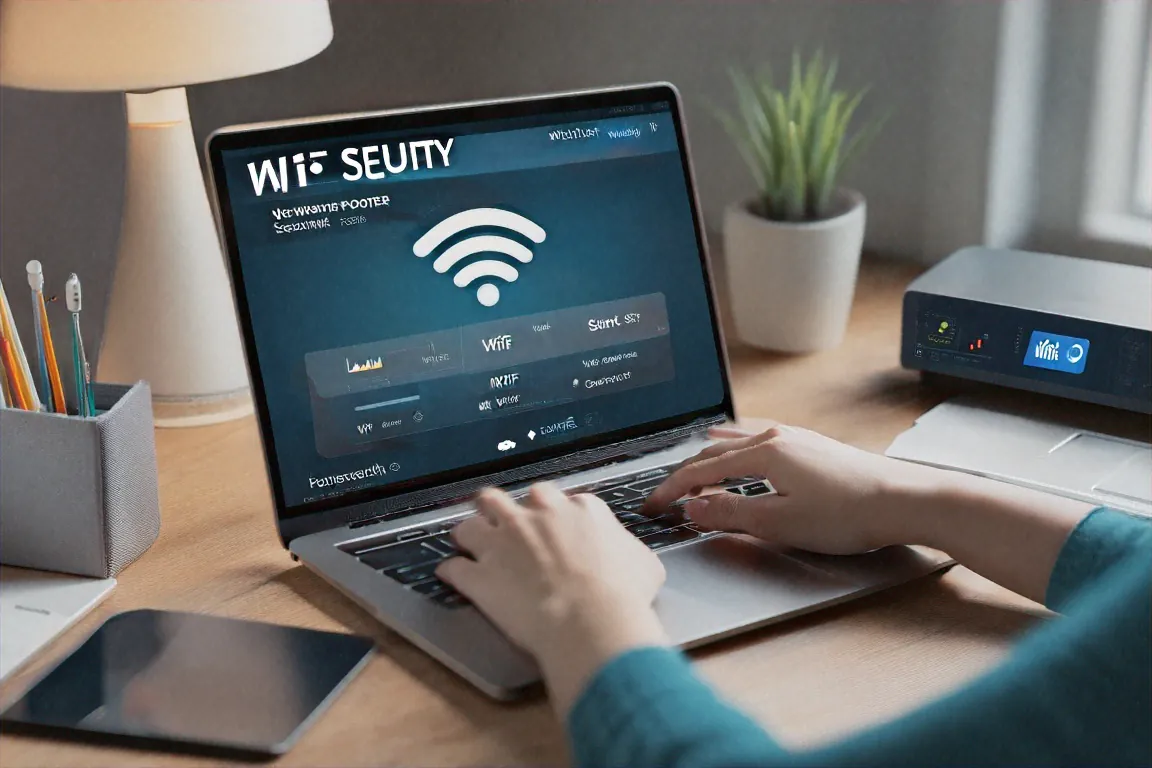
Log into the admin panel. Find the page called "Connected Devices," "Client List," "Attached Devices," or something similar. You will see a list of every device currently connected to your Wi-Fi, usually showing the device name, its MAC address, and its IP address.
Go through the list. Your phone. Your laptop. The smart TV. The tablet your kid uses. You should be able to account for every single device on that list. If something looks unfamiliar, it might be a device you forgot about, like an old tablet or a smart plug. Think it through. But if you genuinely cannot explain a device on your network, change your Wi-Fi password immediately. That kicks everyone off, and only devices where you enter the new password get reconnected.
If you want an easier way to do this, the app Fing (free on Android and iOS) scans your network and shows connected devices with manufacturer names. It is much easier to recognise "Samsung Galaxy M34" or "Xiaomi Redmi Note 12" than a random MAC address. The MyJio app and the Airtel Thanks app also have basic versions of this feature built in, so you can check connected devices without logging into the admin panel at all.
Do this check once a month. If your internet has been unusually slow and you spot devices on the network that you do not recognise, someone is probably freeloading on your connection. Or worse. Either way, a password change fixes it.
There is another reason to check your connected devices regularly. Some types of malware spread across local networks. If a compromised device gets onto your Wi-Fi, it can scan for other devices and try to infect them. This is rare on home networks, but it does happen, especially if someone on your network visits a compromised website or installs a dodgy app. Knowing what is on your network is the first step toward spotting something that should not be there.
If you have a lot of devices and find the admin panel's device list confusing, Fing also keeps a history of devices it has seen before, so you can quickly tell when something new appears. It takes thirty seconds to run a scan. Just do it once a month when you pay your broadband bill. Make it a habit.
Just change your router password today. That one thing alone makes a real difference. The rest can wait till the weekend.


Comments (0)